Docy

Requisition approval flows
Job approval flows help you automate the steps a job requisition has to go through from the moment it's created until it's ready to be picked up by the recruitment team. In short, this feature helps you:

  • Define who needs to approve job requests and in what order, while approvers are automatically notified when it’s their turn to review and approve.
  • Set up multiple approval workflows based on different criteria.
  •  Get notified when a request is approved and you can start the recruitment process.

Set up approval flows

a. One approval flow, valid for all roles

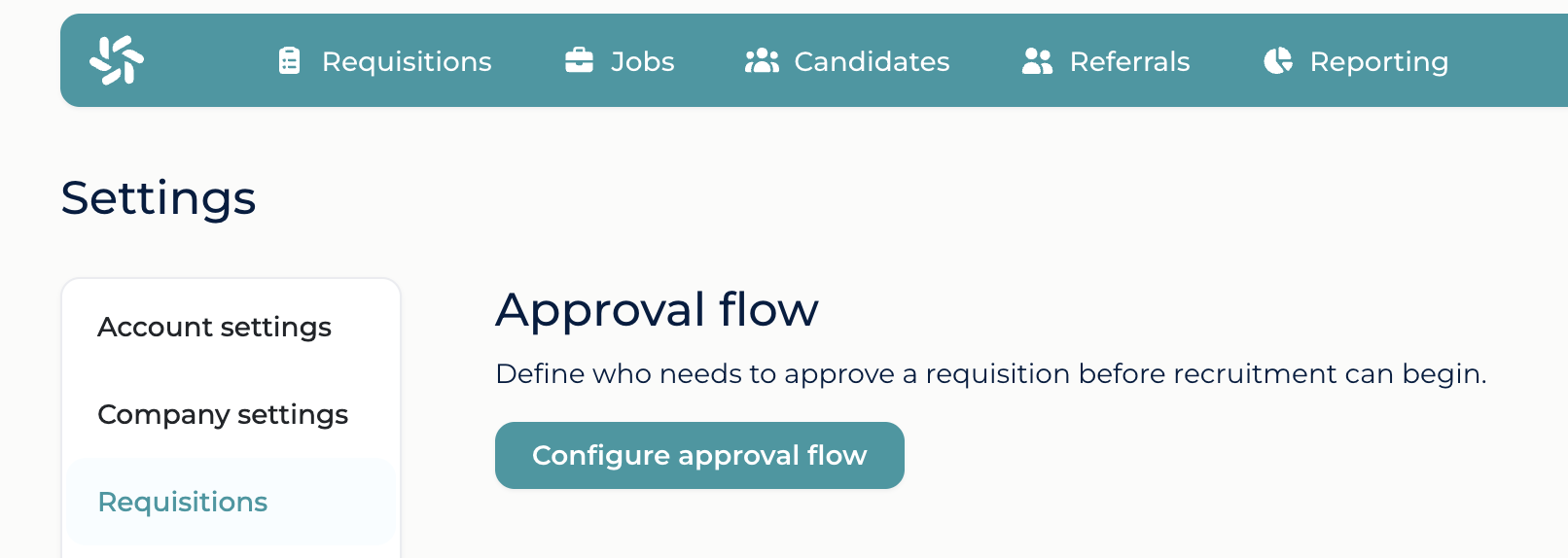
In the top right corner of the app, click on the arrow that appears next to your name. Click on Settings and in the new page choose from the left menu: Job Requisitions

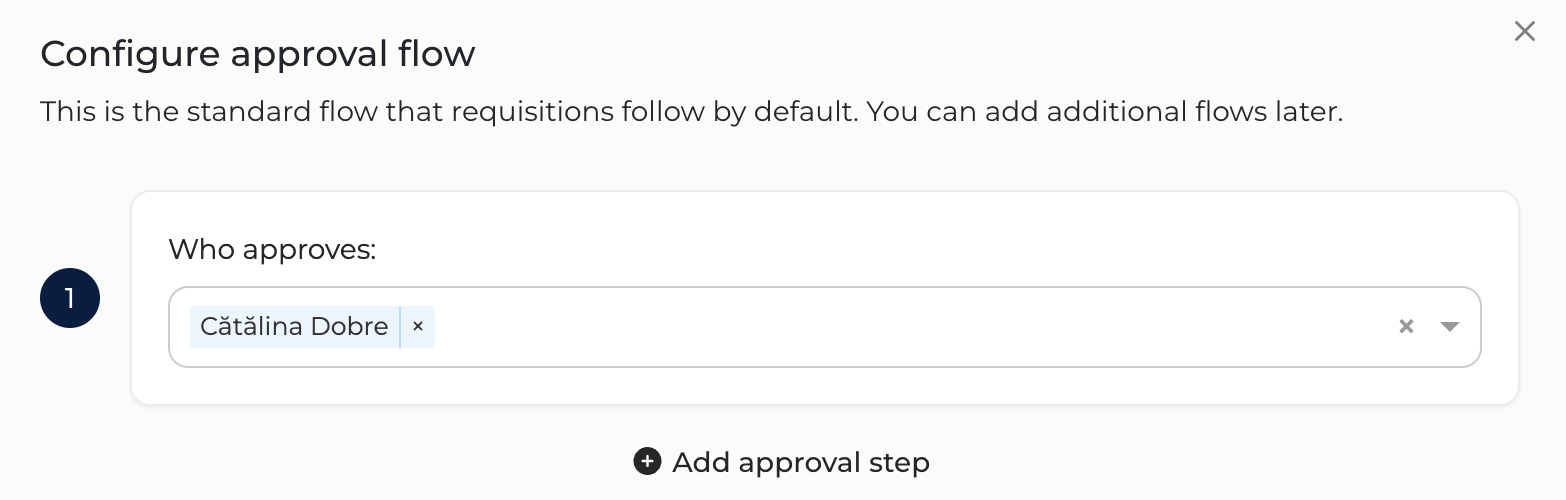
In the upper part of the page, click on Configure approval flow

Flux de aprobare cereri

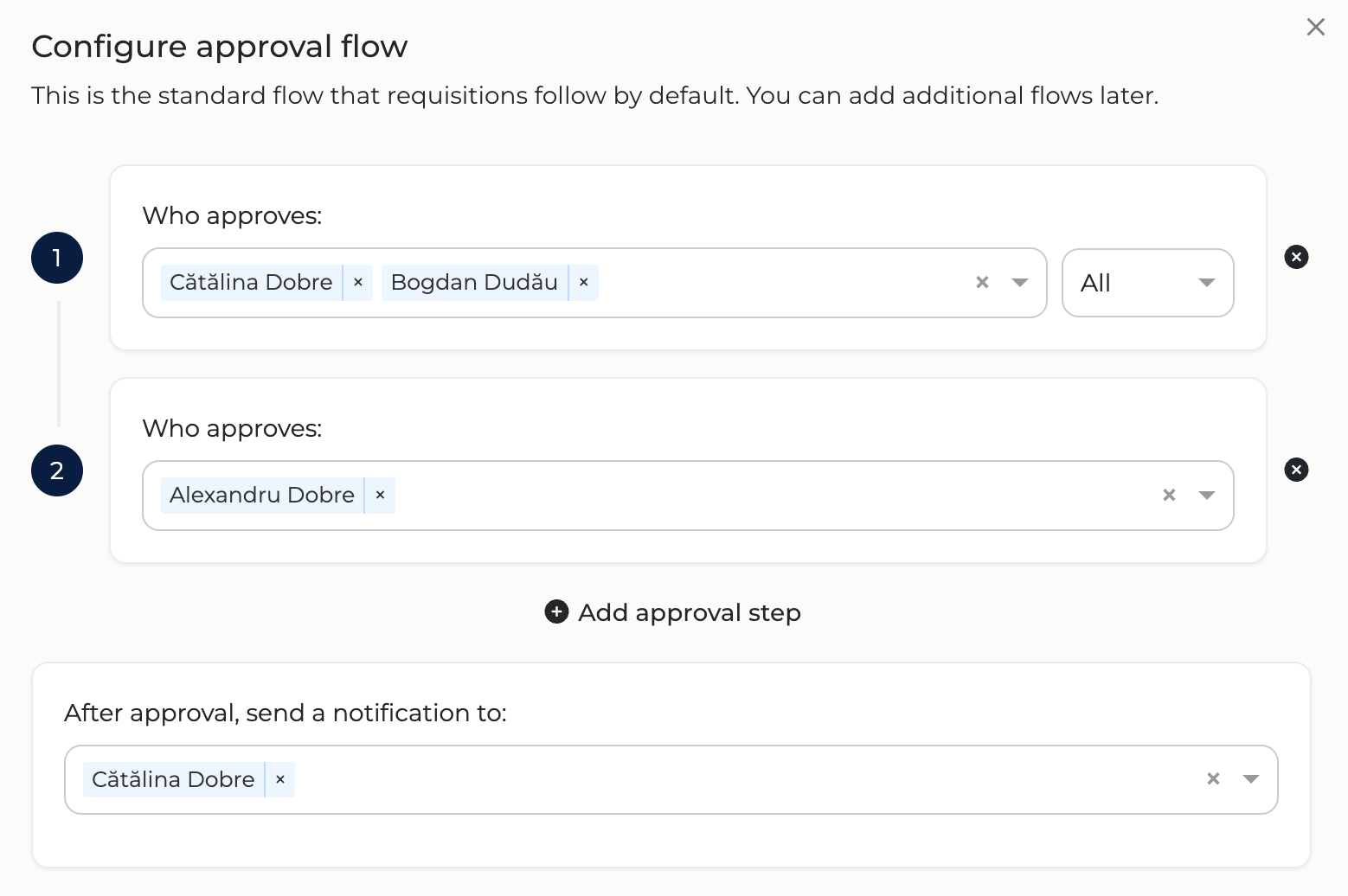
In the new window, choose from the dropdown list the approvers for each step, under Who approves:To add additional steps, click onAdd approval step

Fluxuri de aprobare cereri job

In the dropdown list you will only see users who already have active accounts on Mingle. If some of the approvers are not on the list, first invite them on Mingle by following pașii de aici.

Add more approvers for the same step

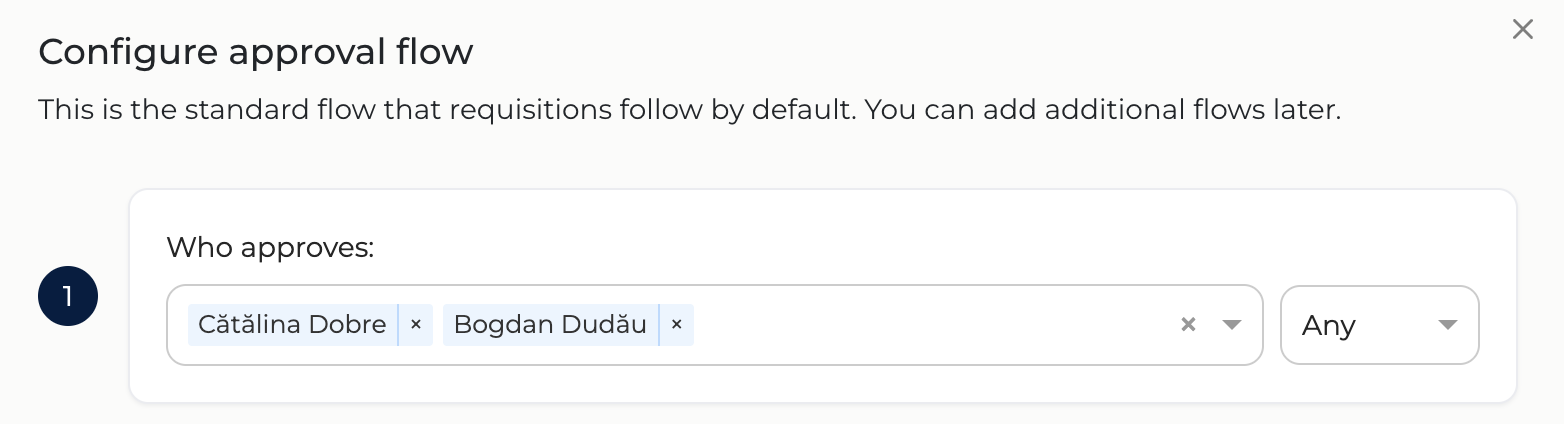
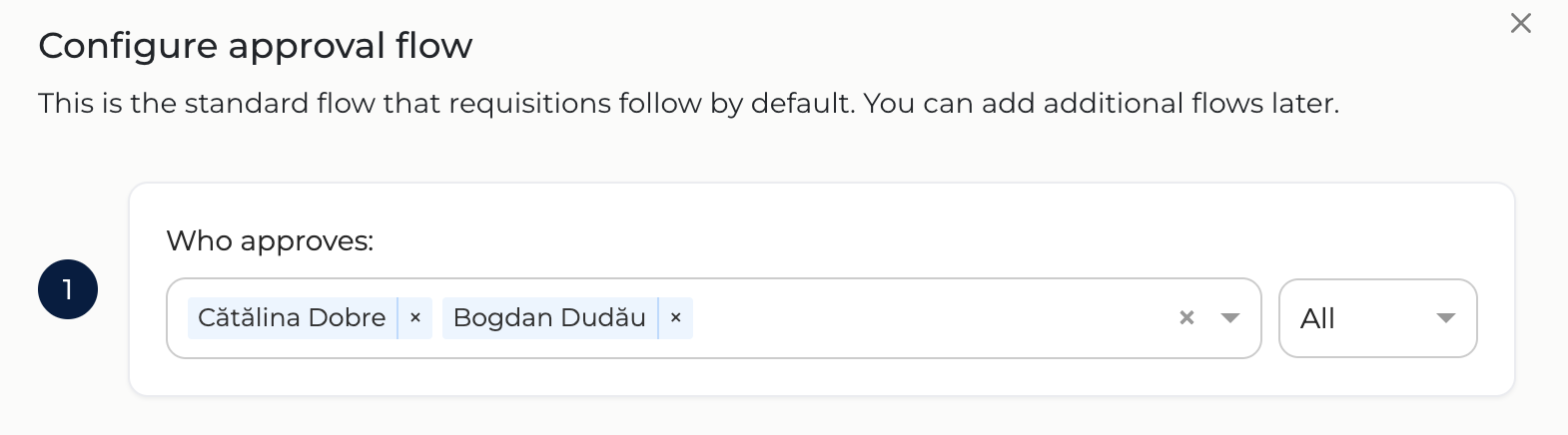
If multiple people need to approve the request at the same step, you can select all of them in the same field. In this case, you’ll have two options:

Option 1. Any of the approvers can approve the request, so it’s not necessary for everyone to approve it. In this case, select Any on the right-hand side of the field.

Fluxuri aprobare cereri job

Option 2. All approvers must agree on the same step. In this case, select All on the right-hand side of the field.

Fluxuri de aprobare cereri job

Define who will be notified when a Requisition is approved

Once you’ve defined the approval steps, you can choose who should be notified when requests have gone through the entire process and have been approved. In the After approval, send a notification to: field, select the user or users you want to notify from the dropdown list.
Notificare cereri aprobate
When you're done, click on Save approval flow

b. Multiple approval flows, based on set criteria

If you have different approval flows based on specific criteria, you can set them up after creating a default workflow, following the steps outlined above. 

To add an alternative approval flow, click on Add an alternative flow

Fluxuri aprobare alternative

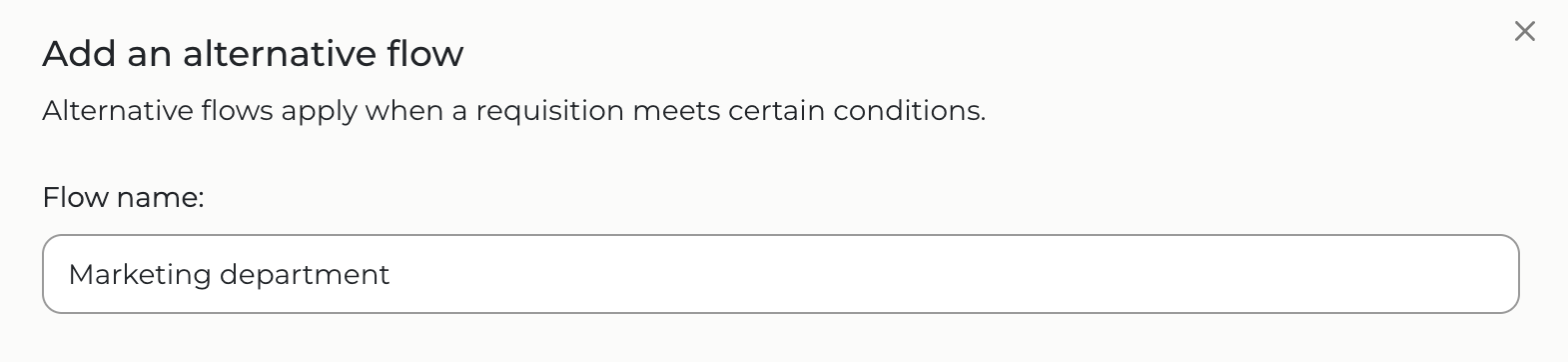
In the new window, start by giving the alternative flow a name. The name should be easy to identify and clearly indicate the cases in which the workflow applies. For example, if the workflow is specific to a particular department, you can name it after that department.

Flux alternativ

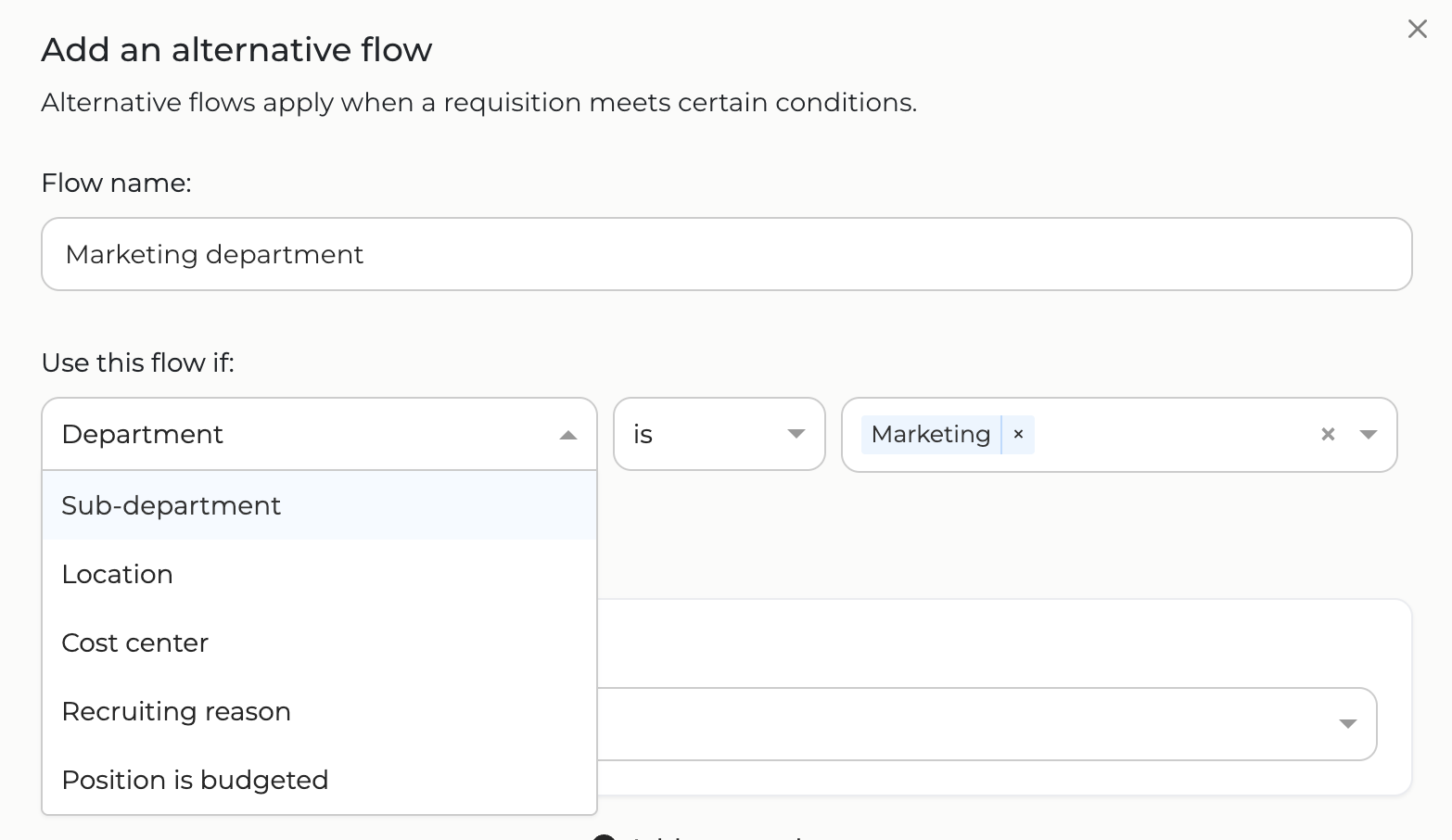
Next, choose the conditions under which the workflow should apply. In theUse this flow if: section, choose from the dropdown list the required criteria. Once you’ve selected one, define the values it should have by filling in the fields on the right:

Flux alternativ

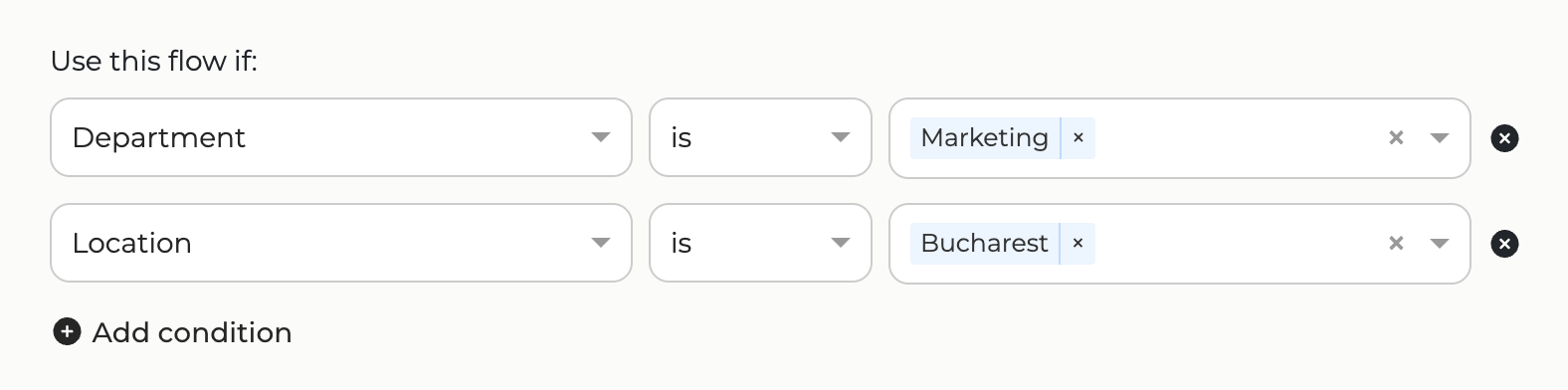
If there are multiple criteria that should be met at the same time, click onAdd condition

Flux alternativ

Once you've set the criteria, fill in the approval steps similar to the step above.

Default flow vs Alternative flows

If you have one or more alternative flows, job requisitions will follow the appropriate one based on the criteria you’ve set. 

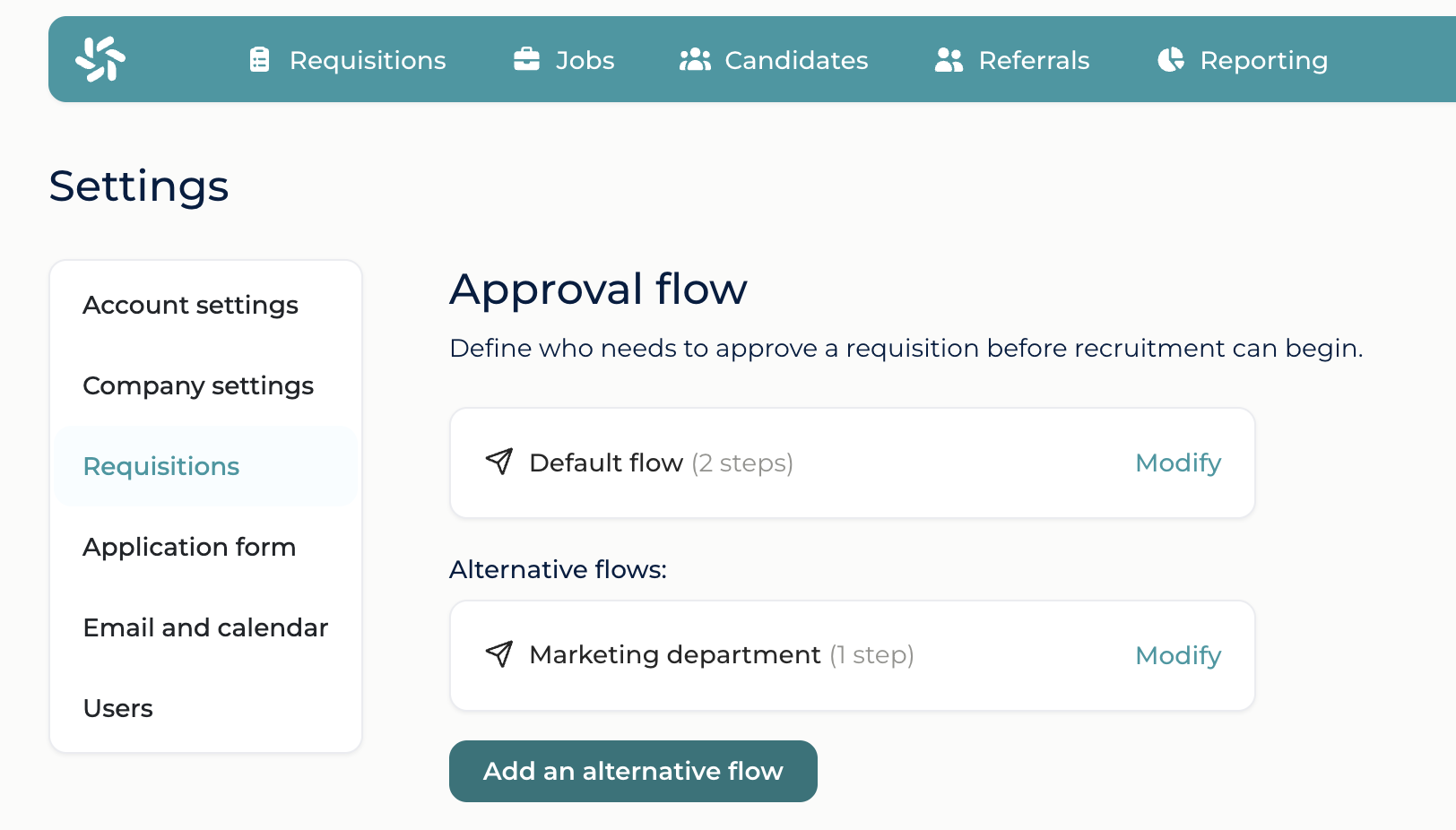
In the example below, all requests will follow the default workflow, except for requests created for the Marketing department, which will follow the alternative “Marketing Department” flow.

Flux alternativ

If an alternative flow has multiple conditions, all of them must be met for the flow to apply. If only some of the conditions are met, the requisition will follow the default approval flow.

Edit an existing approval flow

Approval flows can be modified after they’ve been created. You can either update them for all future requests or make a one-off change for a specific request, in which case only that request will be affected.

a. Update the approval flow for future requests

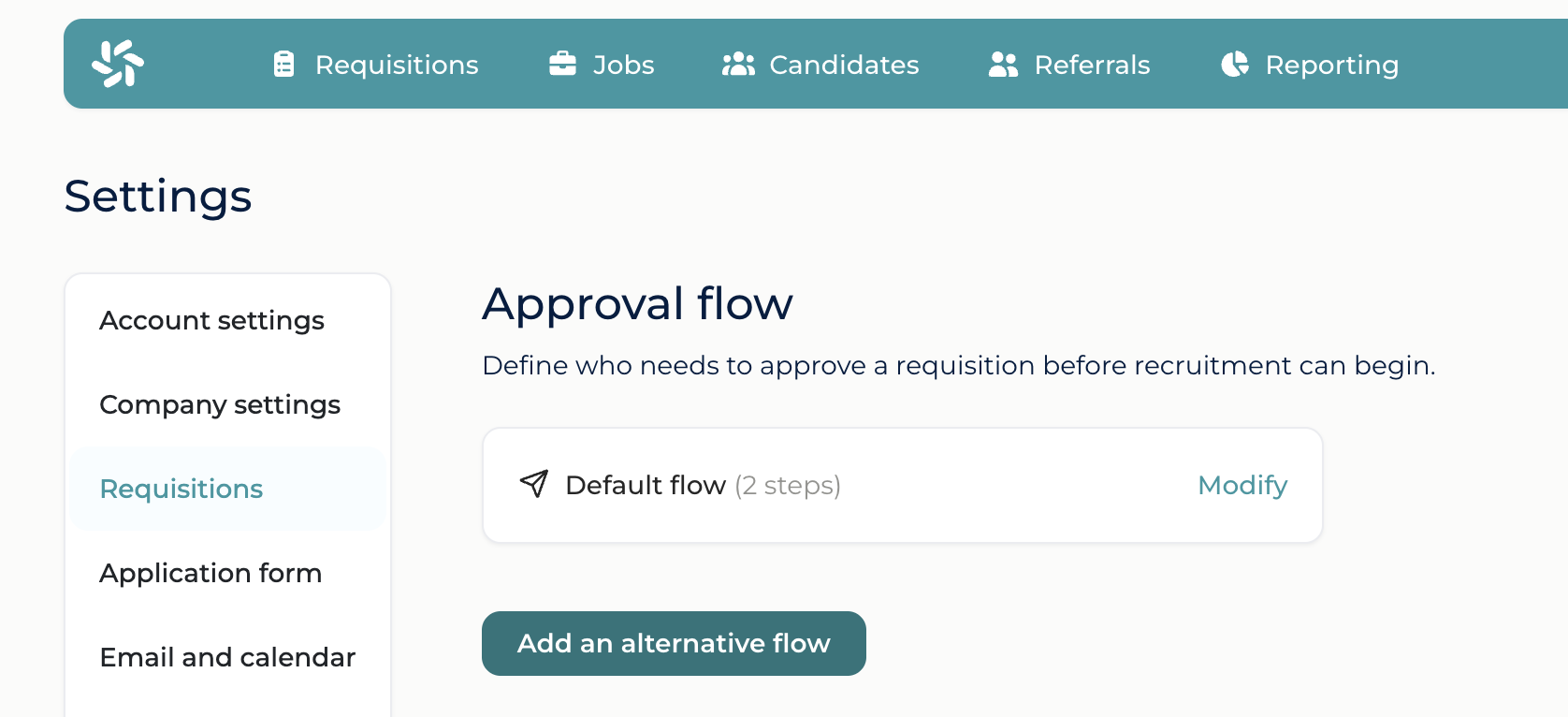
If your approval process has changed or one of the approvers needs to be replaced, you can update the approval flows that will apply to newly created requests. Go to Settings > Requisitions > Approval flow and click on the Modify button next to the flow you want to update.

Modifica flux

In the new window, update the flow with the new steps. You can remove existing steps, add new ones, or change the people or rules for each step.

Any changes you make will apply only to requisitions submitted after the new flow is set up. Requisitions that have already been created will continue to follow the previous flow and can only be modified individually.

b. Update the approval flow for an existing Requisition

For recruitment requisitions that have already started an approval flow, you can modify the approval steps for that specific requisition. To do this, use the Requisitions menu from the navigation bar, find the requisition you want to change and click it to open it. 

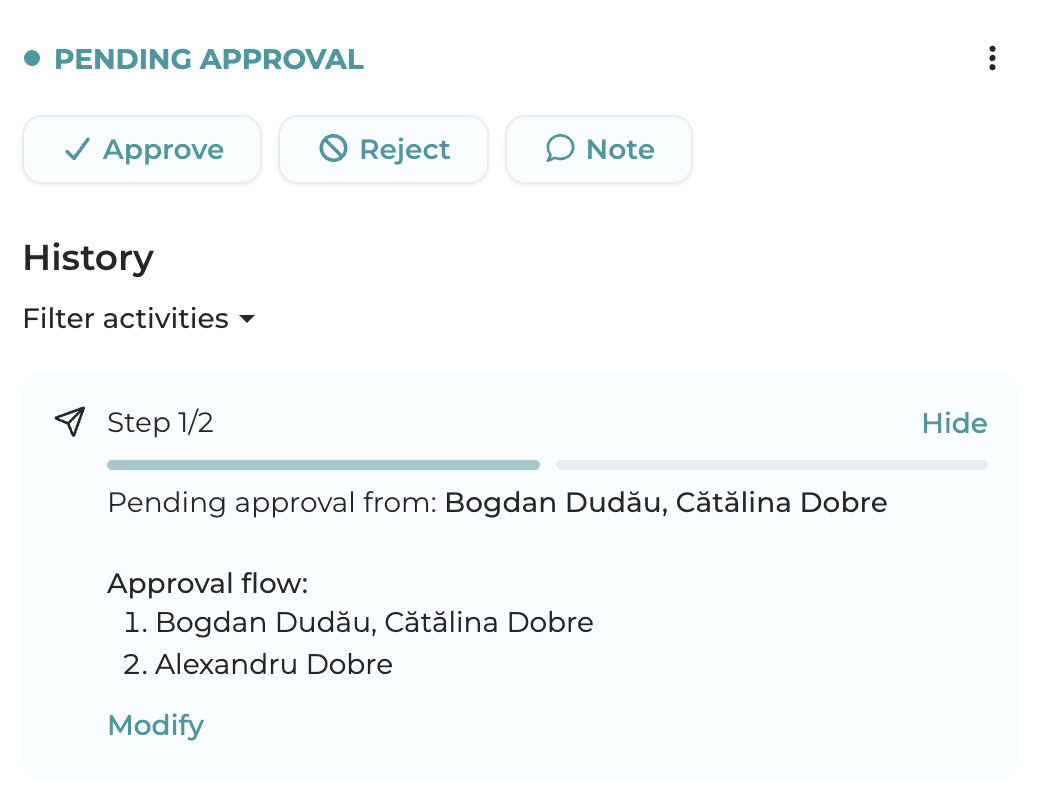
On the right-hand side, you’ll see the approval steps the requisition needs to go through. Click on Show detailsand then on the Modify button that appears in the bottom-left corner of this section

Modifică flux

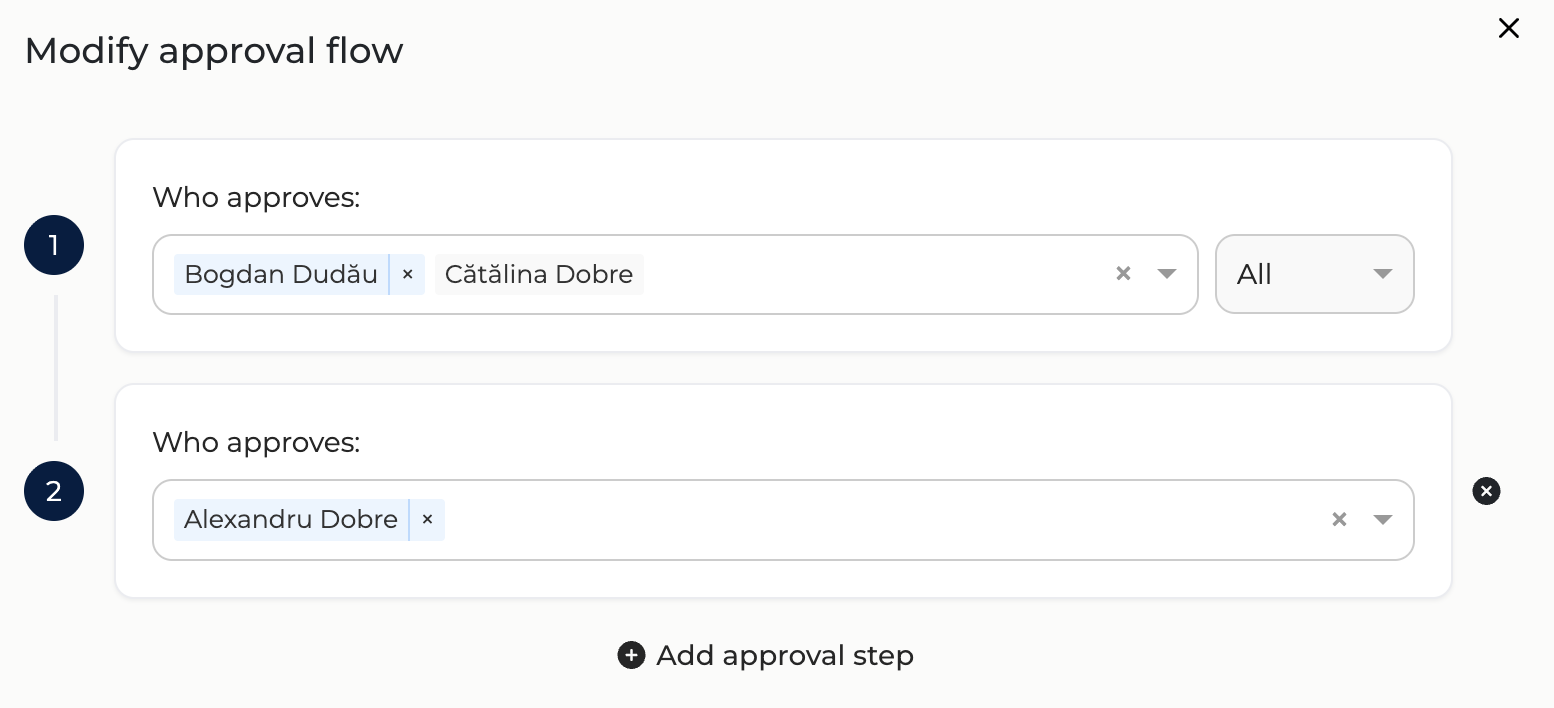
In the new window, you can modify the upcoming steps or the people who need to approve the requisition. You can’t change the steps the requisition has already gone through, only those that are still pending. 

Modifica flux
Any changes you make will apply only to that specific requisition and will not affect the approval flows defined in Settings

Track requisitions pending approval

Once a requisition has been submitted, it will automatically go through the appropriate approval flow. From this point on, no one can make changes to the fields filled in the request, so the approval process remains unaffected. You can track the approval status in real time from each requisition's page.

In the Requisitions menu from the navigation bar, click on Pending Here, you’ll find all requisitions that are currently pending approval, as well as requisitions that have been approved and are waiting to be picked up by the recruitment team. Here, click on the desired requisition. 

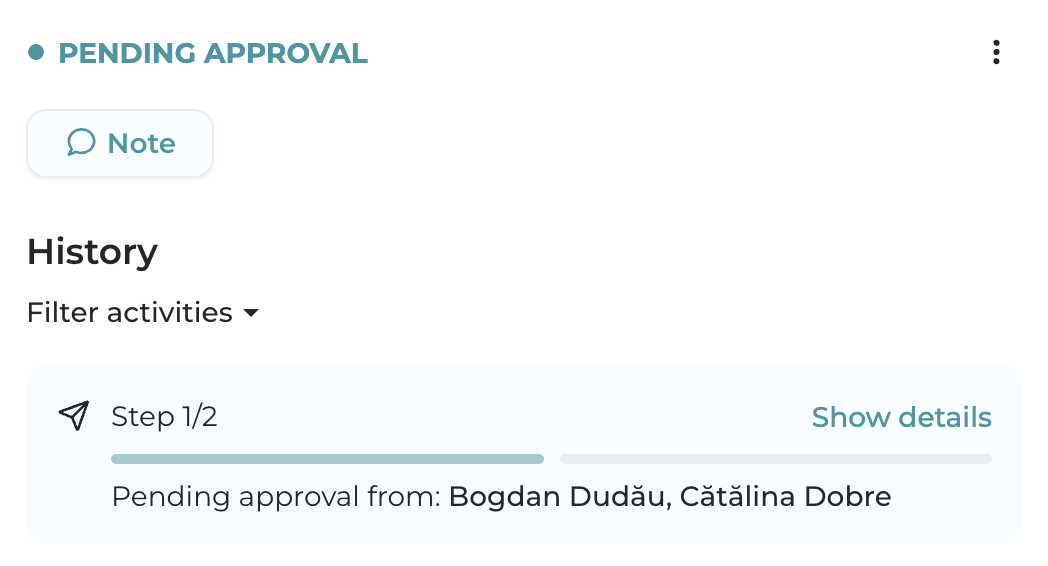
On the right-hand side of the page, you can see the approval steps it needs to go through:

Flux aprobare

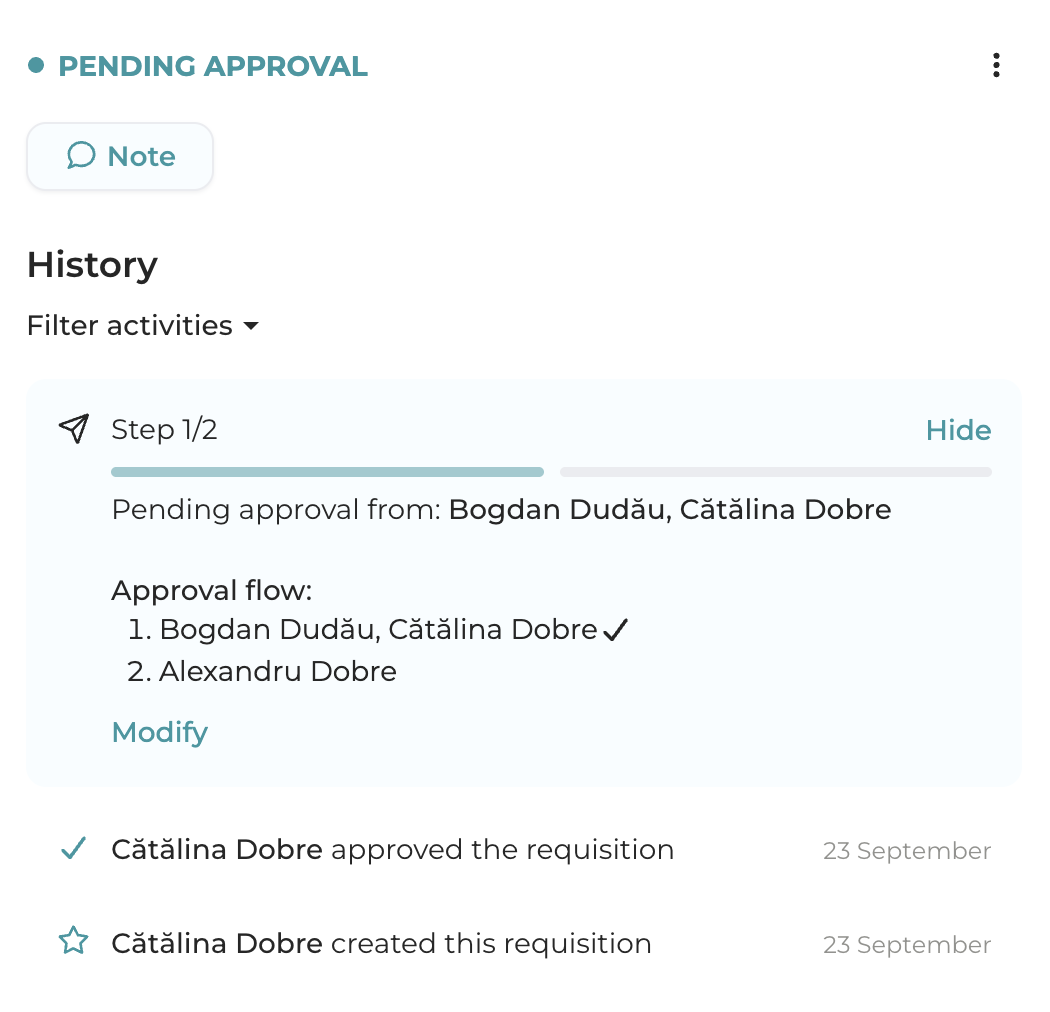
Click on Show details You’ll be able to see more details about the steps the requisition has already gone through and those that are still pending. All completed steps are also saved in the requisition history, on the right-hand side.

Flux aprobare cereri

How to approve or reject a job requisition

People who need to approve requisitions will receive an email notification when it’s their turn to approve a requisition. The email contains a link to the requisition, which takes them directly to its page, where they can see all the completed details and its history. 

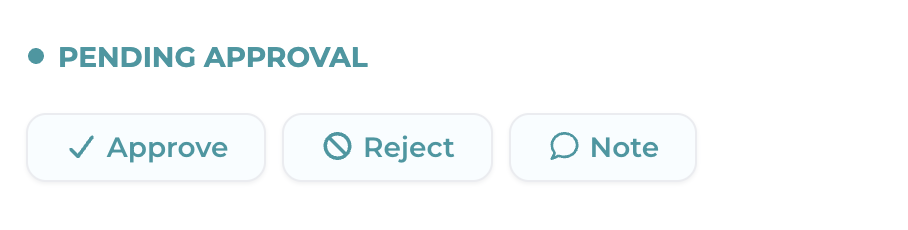
Approvers have two options: to approve or to reject the requisition. 

Aproba cererea

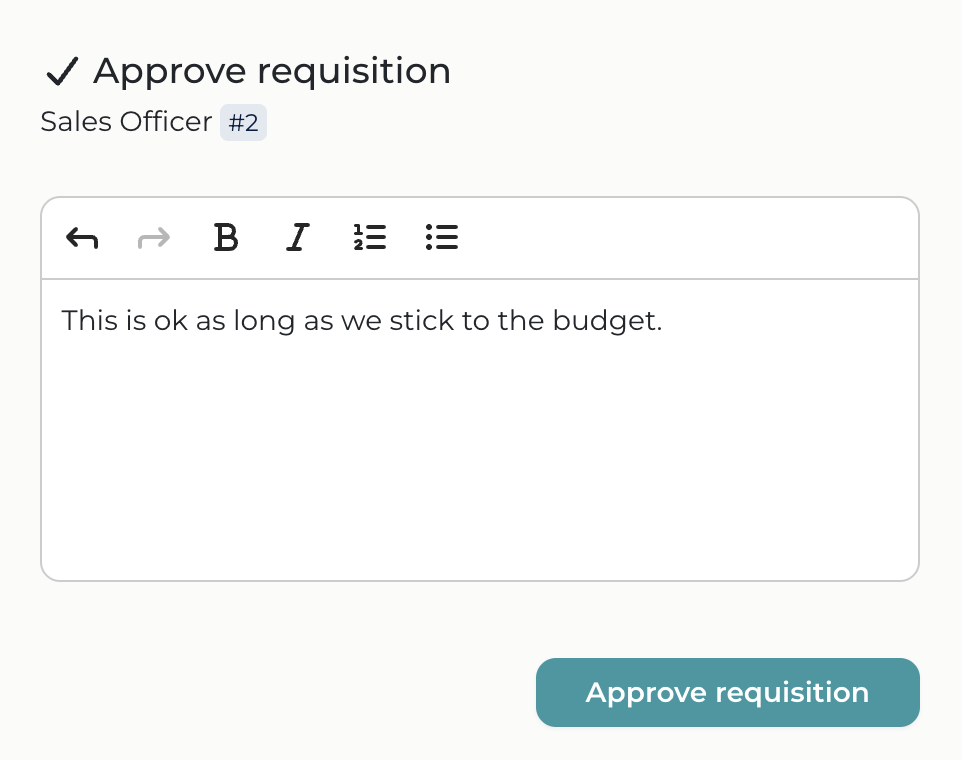
When they will choose one of the two options, they can also leave a note for internal communication:

Aproba cerere

Once the requisition is approved, it will go to the next step of the approval flow. 

If a requisition is rejected, it will be sent back to the initiator, who can make changes and resubmit it. In this case, the requisition will go through the approval process once again from the beginning. Depending on the changes made, a requisition may even enter a different approval flow based on the new conditions it meets.

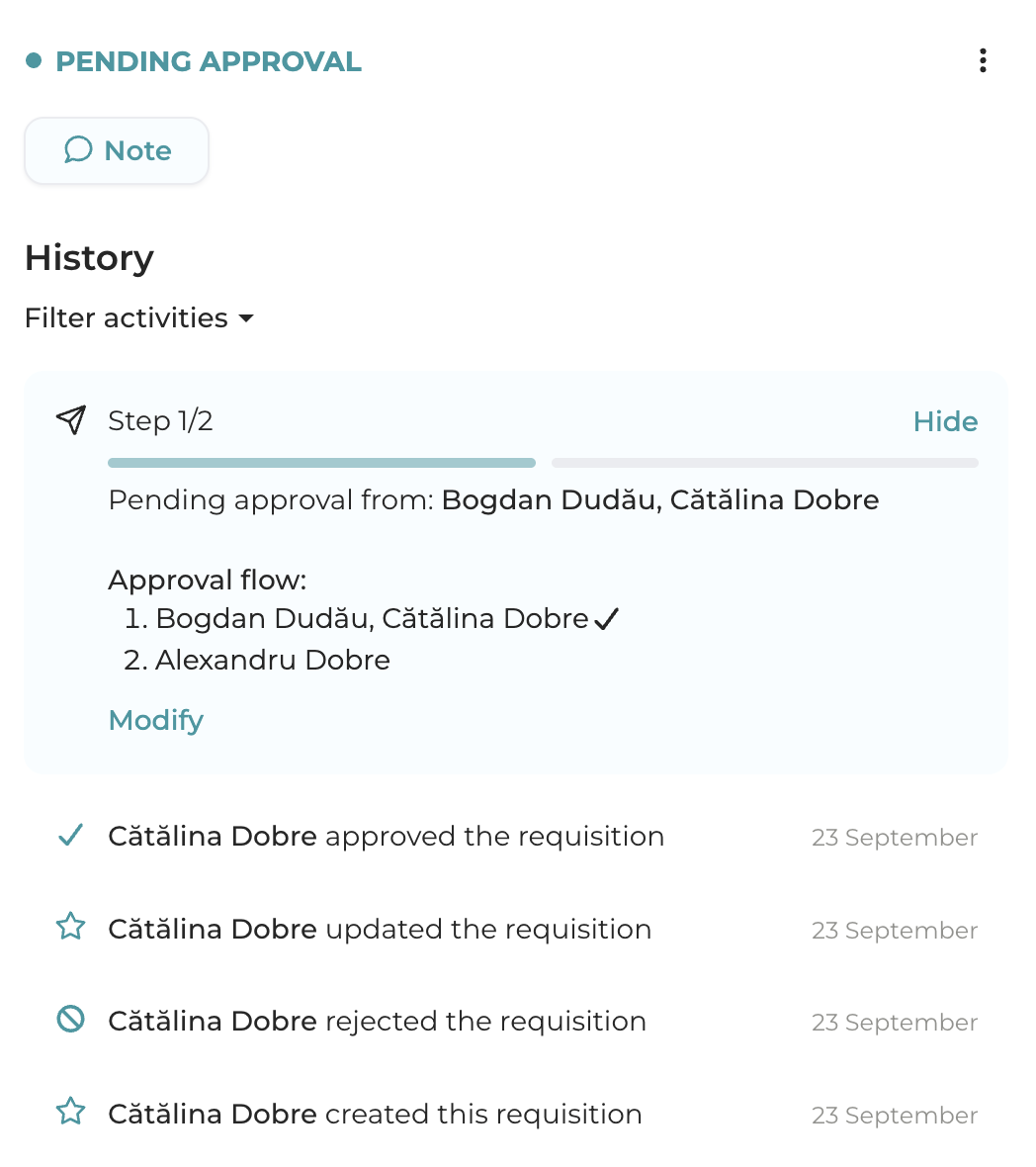
The requisition history is visible on the right-hand side of its page.

Istoric cerere

What happens once a requisition is approved

Once a requisition has completed all the steps in the approval process, you can start the recruitment process. The users selected to receive notifications (defined in Settings) will receive an email once the requisition has been approved.

To start recruiting, you can connect it to an existing job or create a new job based on it. To do this follow these steps. 

CONTENTS