Set up GDPR automation features
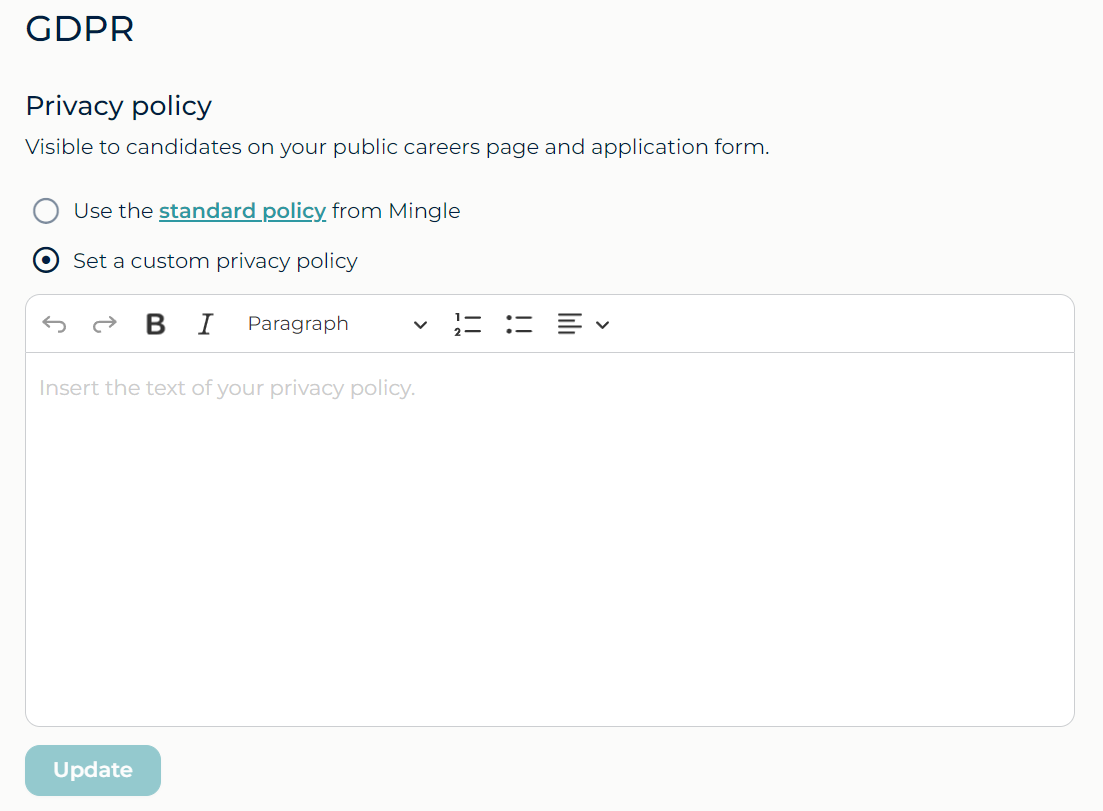
1. Add your GDPR policy
When candidates apply through the application form in Mingle, they must agree to your data processing policy.
You can use the policy generated by Mingle or you can define your own policy.
To define your own GDPR policy, click on your name on the top right of the menu bar. Navigate to Settings > Company settings
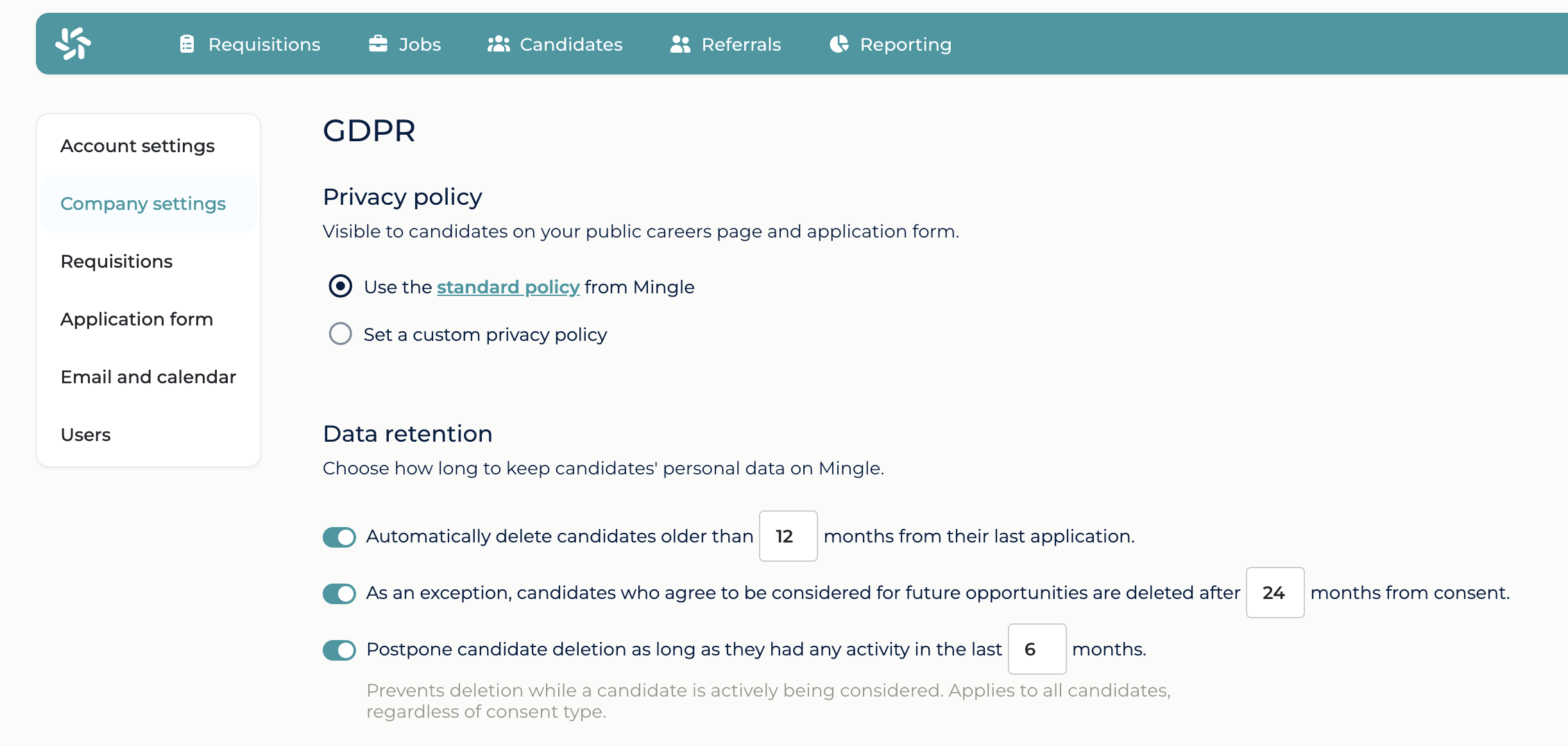
In the sub-section GDPR> Privacy policy choose the option Set a custom privacy policy
Type in the GDPR policy here, and when you're done, click on Update
If you don't define a custom policy, the standard Mingle policy will be displayed. You can see it by clicking on Use the standard policy from Mingle
2. Automatically delete candidate data
You can automatically delete candidates from your database after a set period of time.
For example, if you want to delete applications older than 1 year, they will be automatically deleted when reaching this deadline.
To set this, click on your name on the top right corner of the menu bar. Navigate to Settings > Company settings
In the sub-section GDPR> Data retention choose the interval after which you want the data to be deleted automatically.
If you don't want to delete candidates with whom you have done activities in the last x months, define this period in the second line of this setting.
In the case below, for example, candidates older than one year are automatically deleted. But if some of them have activities in the last 6 months, their deletion will be delayed.
3. Collect optional consent for future opportunities
In addition to the standard consent for data processing, you can collect optional consent from candidates who wish to remain in your database for future opportunities. To do this, navigate to Company settings, and access GDPR> Data retention .
Here, you can choose to enable the option: "As an exception, candidates who agree to be considered for future opportunities are deleted after X months from consent."
The duration you set in this field must be longer than the one selected in the field above (because candidates who agree to this option will be kept in the database for a period exceeding the standard duration).
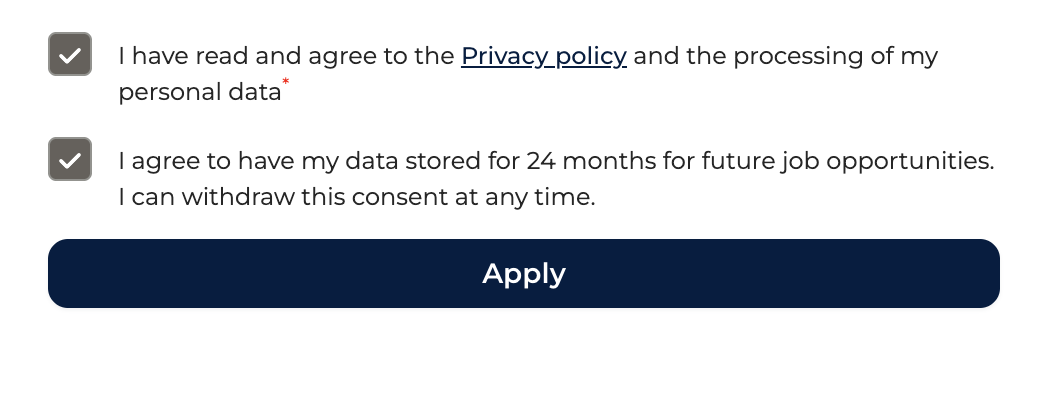
This option will appear to candidates when they apply via the careers page, as an optional checkbox:
4. Extend or withdraw candidate consent
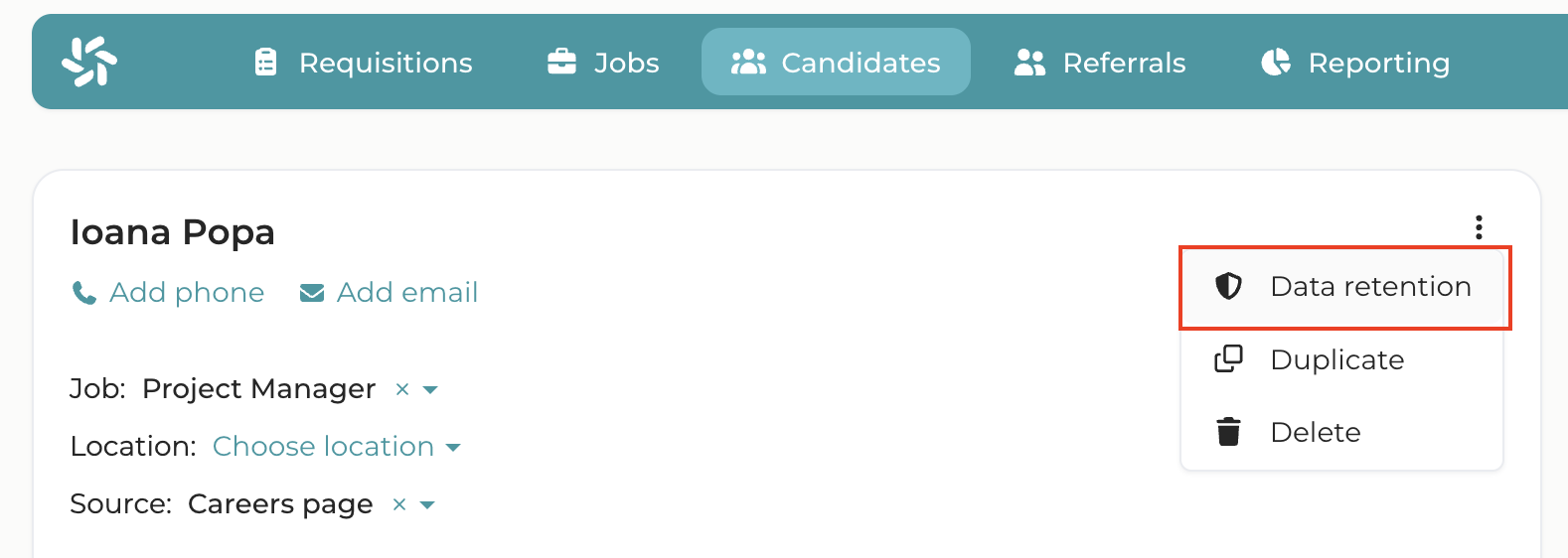
On each candidate's profile page, you can view their GDPR status. Go to the desired candidate's profile and, on the left-hand side - next to their name - click the three dots located on the right side. From the list of options that appears, select Data retention
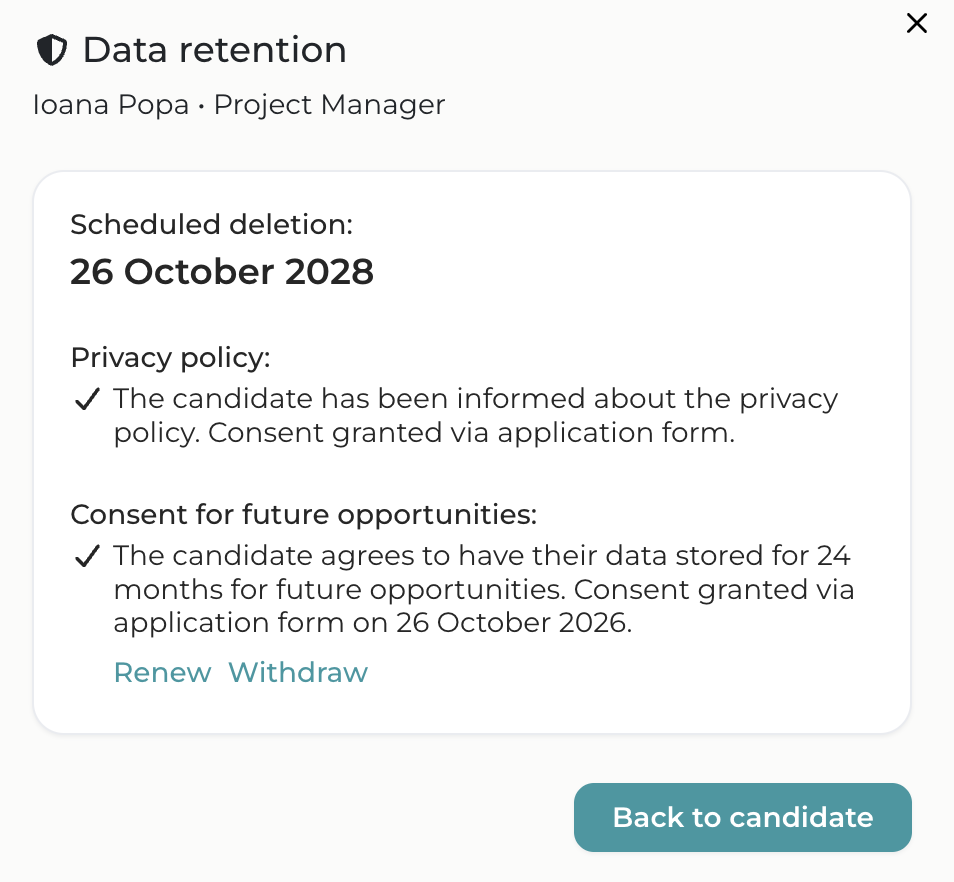
In the window that opens, you will see the estimated deletion date for the respective candidate, as well as the GDPR consent collected from them.
What each field means:
Scheduled deletion: the date on which the candidate will be deleted, in accordance with the deletion rule established as per point 2 above. For example, if you have configured to automatically delete data after 2 years, then candidates will be deleted once 2 years have passed since their application.
Privacy policy: here you can see whether the candidate has been informed about the company privacy policy.
Consent for future opportunities: This field only appears if it has been enabled in Settingsas per point 3 above. You can obtain, renew or withdraw a candidate's consent at any time by clicking the corresponding buttons next to this entry. The candidate's deletion date will be updated based on the revised consent status - for instance, if you renew it, the retention period will be extended and the deletion date updated; if you withdraw consent, the retention period will be shortened accordingly.