Docy

Evaluation Forms (Structured Feedback after Interviews)
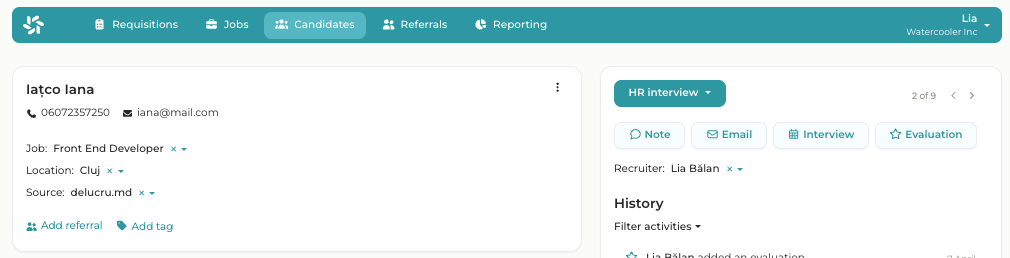
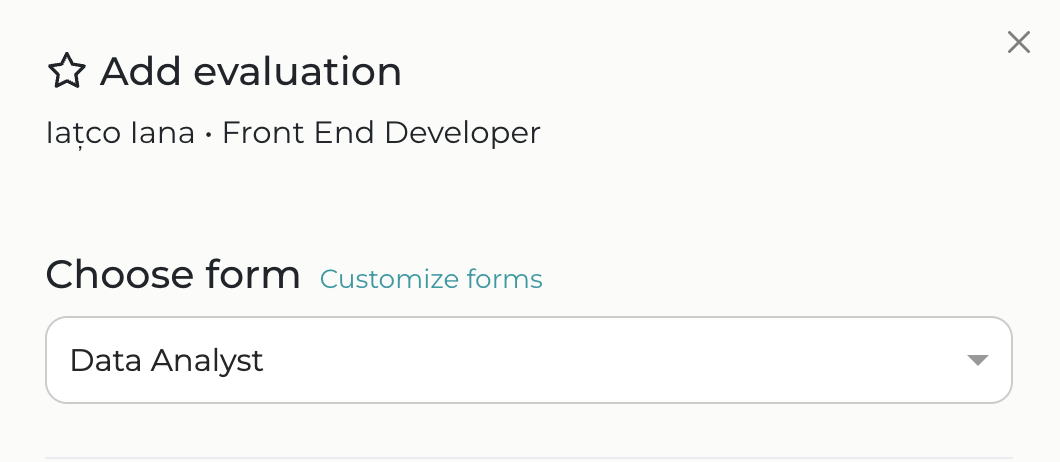
Using Mingle’s Evaluation Forms, you can build structured feedback templates and complete candidate assessments directly within the platform. This eliminates the need to store files externally or email forms to hiring managers. 

Here's how it works: 

1. Create an evaluation form

The templates for evaluation forms are simple to create and, once saved, you can use them for any candidate.

How to create them? 

Open any candidate’s profile. In the top-right corner, beneath the candidate’s status, click the Evaluationbutton (the last item in the list, following Interview).  

Then, click Customize forms 

feedback structurat


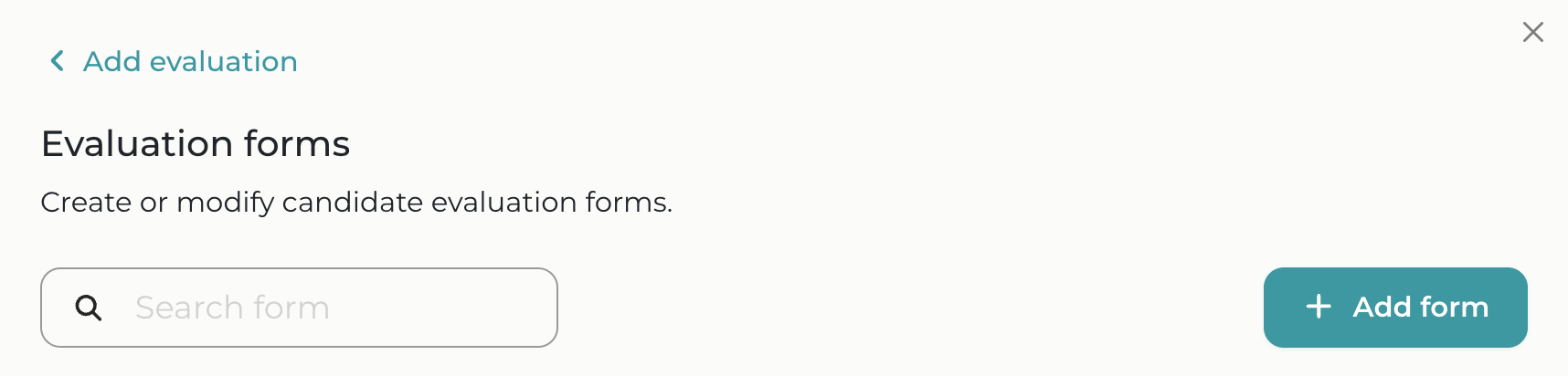
A new window will open where you’ll see the Add form button and a list of existing templates (if you or your team members have created any previously). To build a new one, simply click Add form

feedback structurat

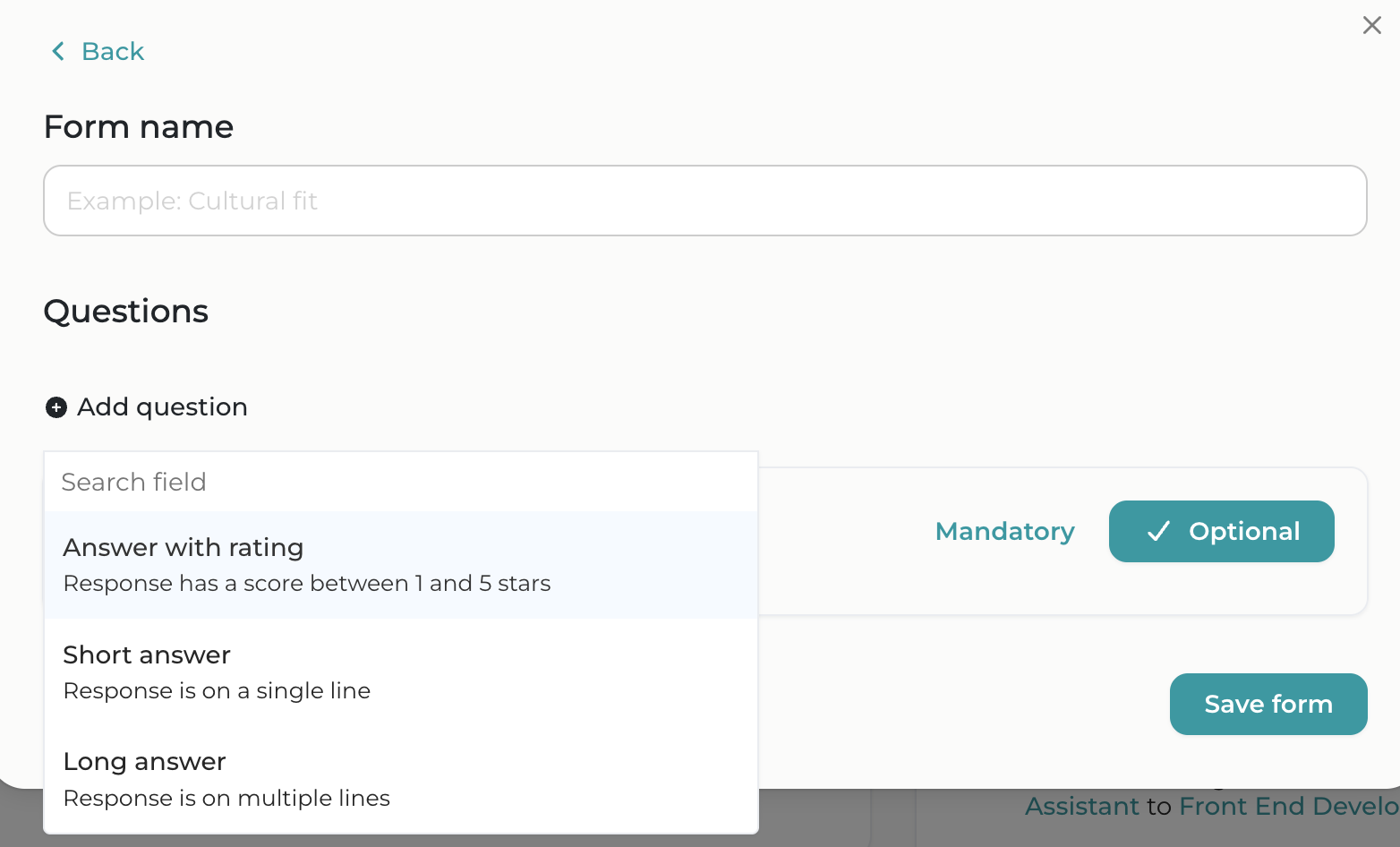
Name your template, then start adding questions by clicking the Add question button

feedback structurat


Here, you will see a list of response types available:

  • Answer with rating – a rating-style evaluation. Respondents can provide a score from 1 to 5 and add a comment.
  • Short answer – used for brief, single-line responses (e.g., yes/no, a date, or 'he/she is a good fit')
  • Long answer – used for more detailed, multi-line responses

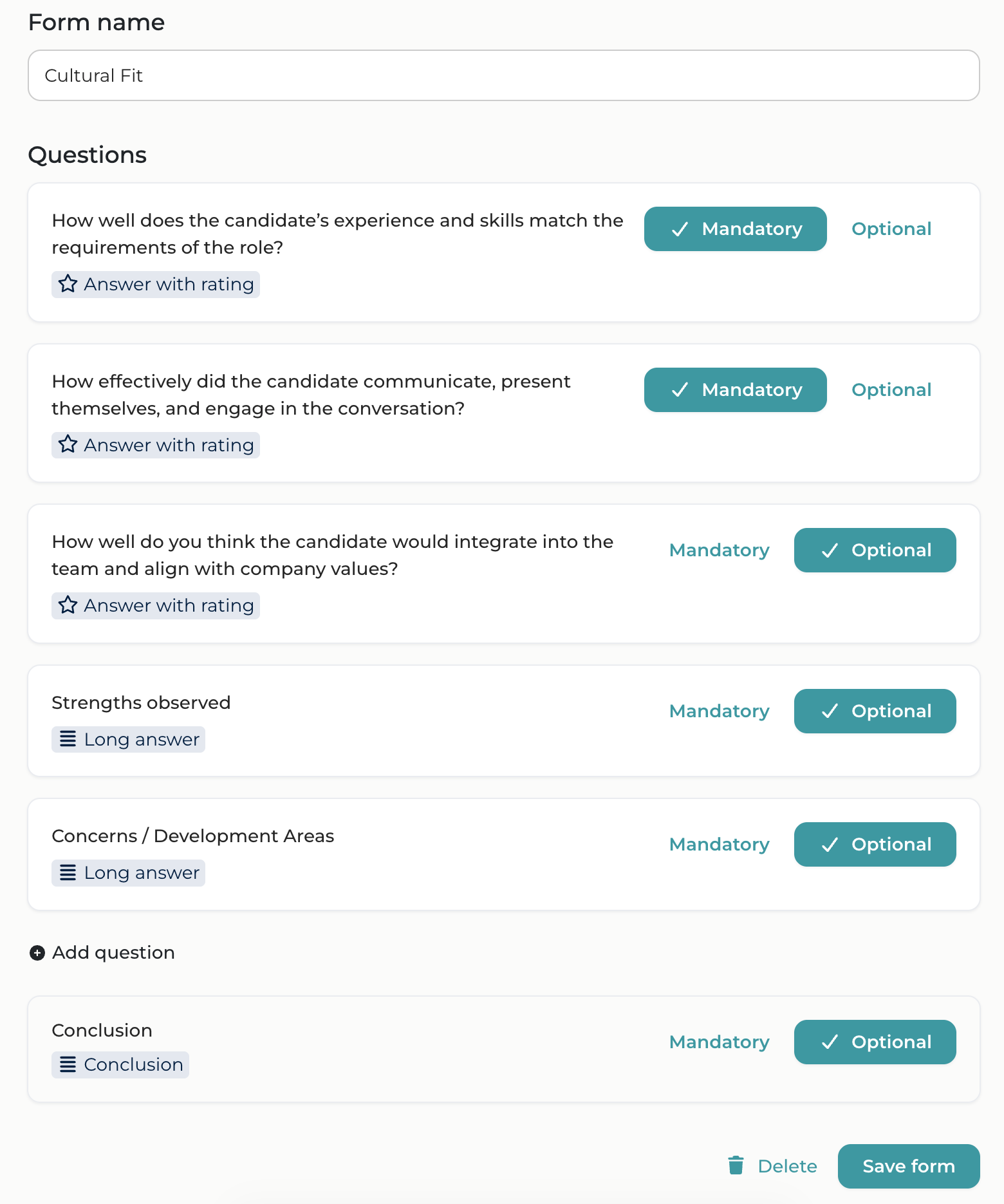
For each question, you can select only one response type and choose whether it is mandatory or optional.

By default, you will have a dedicated Conclusion field, where the evaluator can leave a brief summary or mention another user to notify them. Once you have finished adding your questions, don't forget to save the form.

feedback structurat
Info

If you add Score-based questions, the candidate's final grade will be calculated automatically based on the average of the scores provided during the evaluation.

2. Edit existing templates

To edit a form, open any candidate’s profile. In the top-right corner, beneath the candidate’s status, click the Evaluation button (the last item in the list, following Interview).

Then, click Customize forms.

feedback structurat

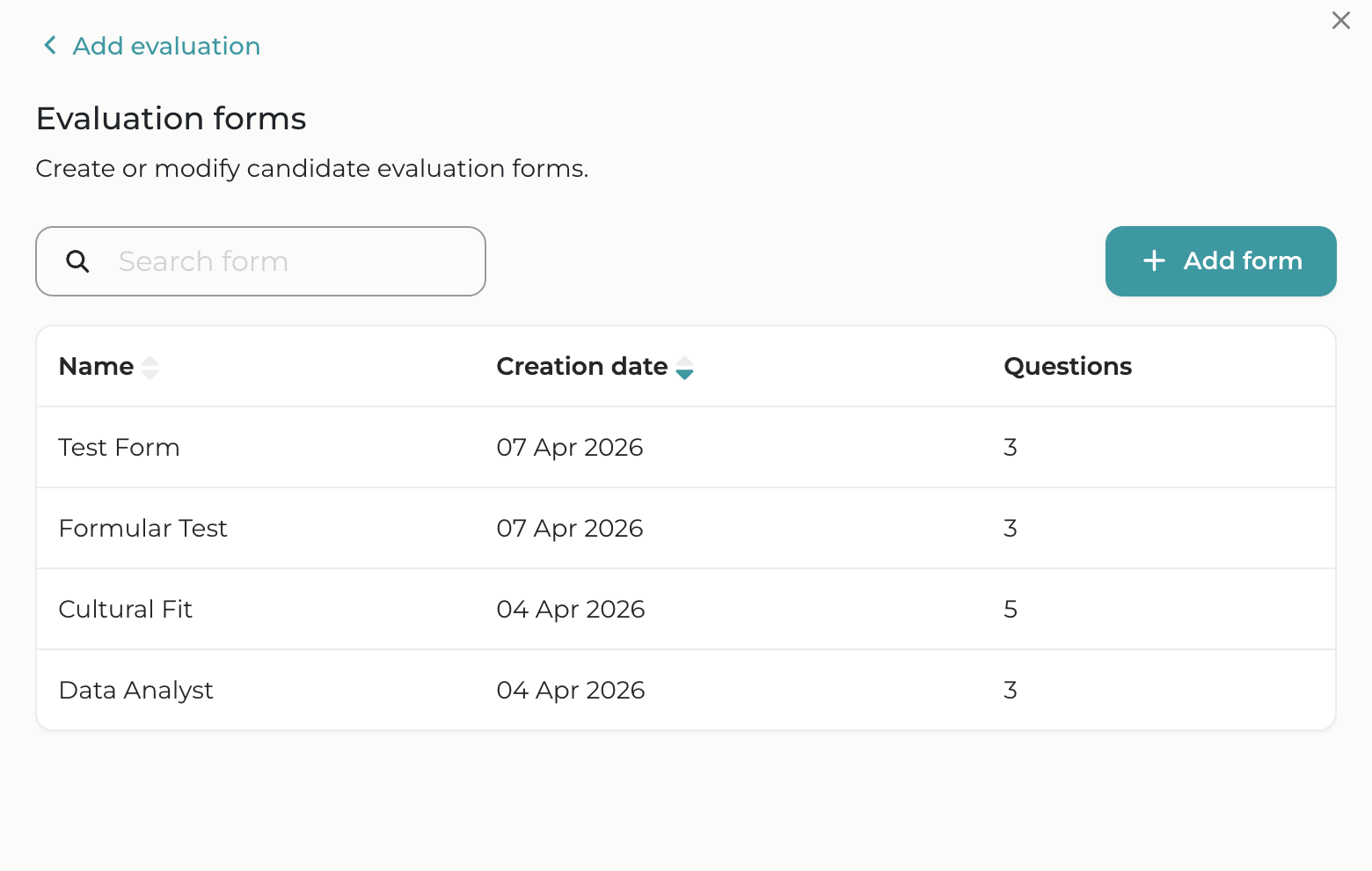
A new window will appear where you will find the list of previously created templates. Select the one you wish to edit to add, delete, or modify information, or to update whether questions are required or optional.

feedback structurat

3. Add an evaluation for a candidate

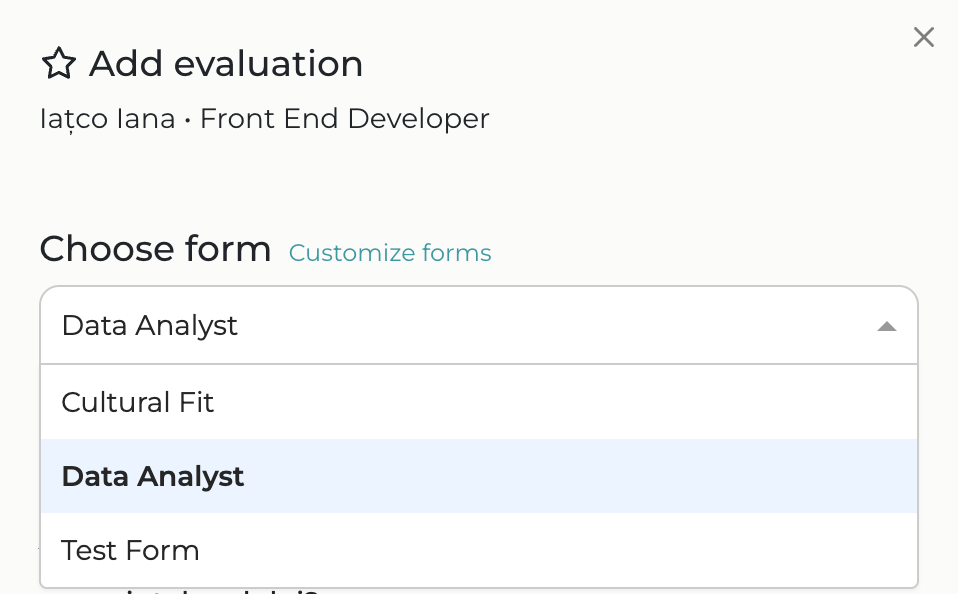
Open the profile of the desired candidate. In the top-right corner, beneath the candidate’s status, click the Evaluation button (the last item in the list, immediately following Interview. In the window that appears, select the template you wish to use for the evaluation from the drop-down menu.
feedback structurat

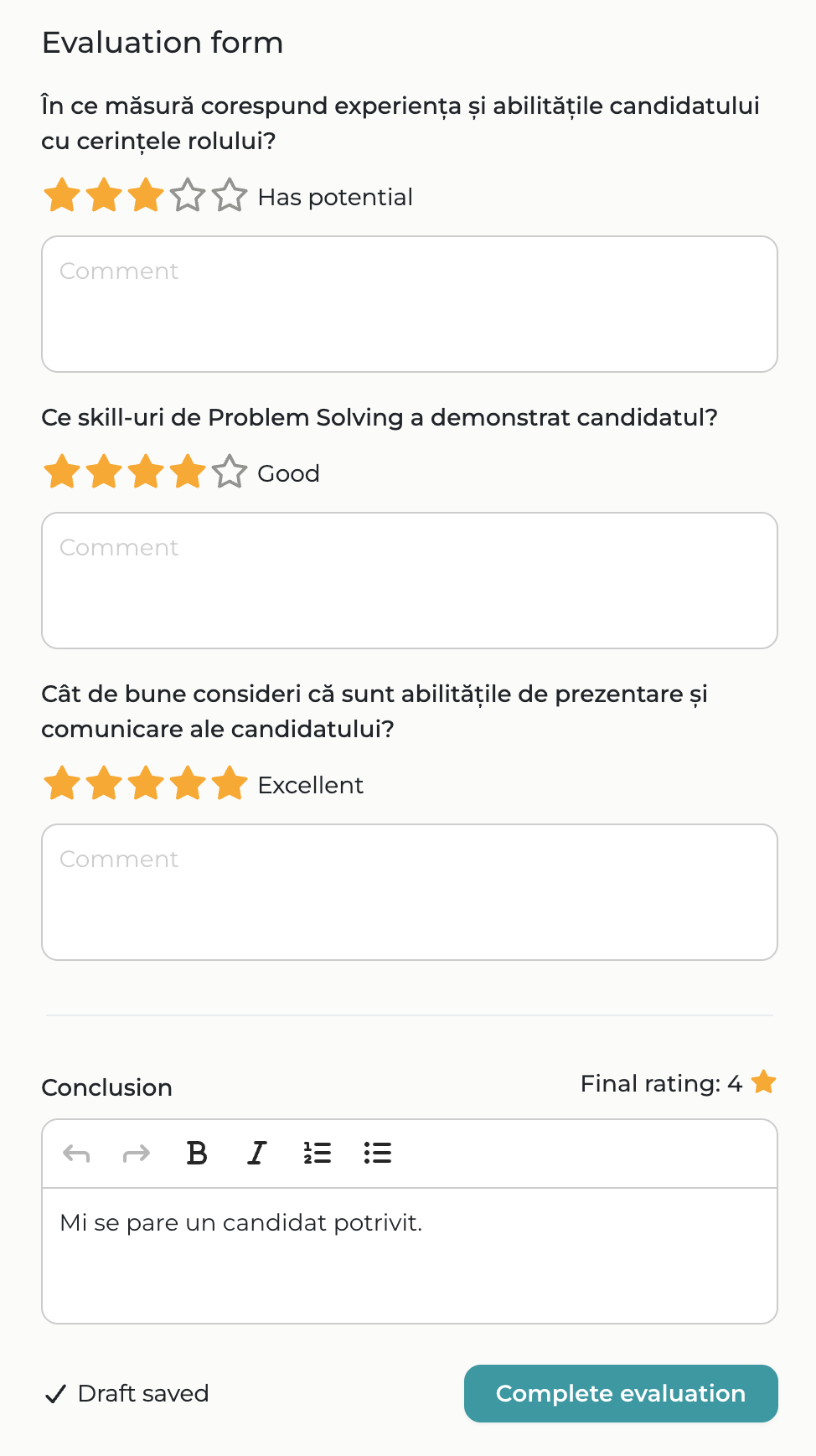
The form ready to be filled out will open.  

In the Conclusions field, you have the option to add a summary text and mention your colleagues. 

Additionally, if you added Score-based questions, you will see the calculated grade above the Conclusions field, based on the average of the scores provided throughout the evaluation.    

feedback structurat

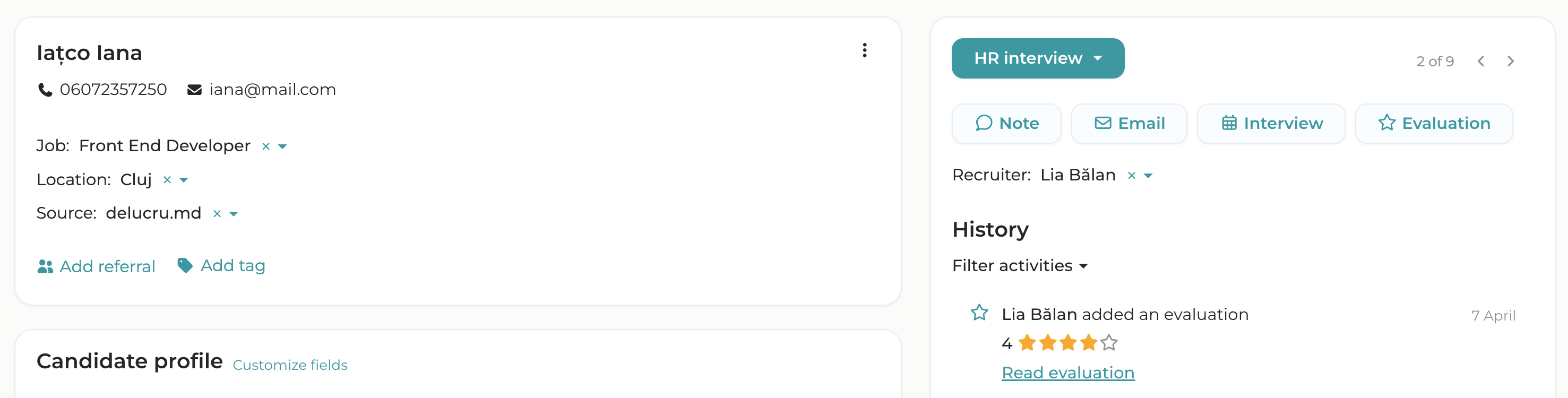
This information will be displayed in the candidate's history along with the form. It will be helpful to write a conclusion because you will have a summary that is quickly visible from the candidate's page, and you will be able to search using keywords from this section.

4. Edit an evaluation

To edit an evaluation that you have completed, navigate through the candidate's history to your specific entry and click Read evaluation. This will open the form, allowing you to make any necessary changes.
feedback structurat
Info

Changes made in the structure of a form will not affect the evaluations that have already been submitted.


How can you use the updated version?

You can add a new evaluation after the form has been updated.

5. View all completed evaluations

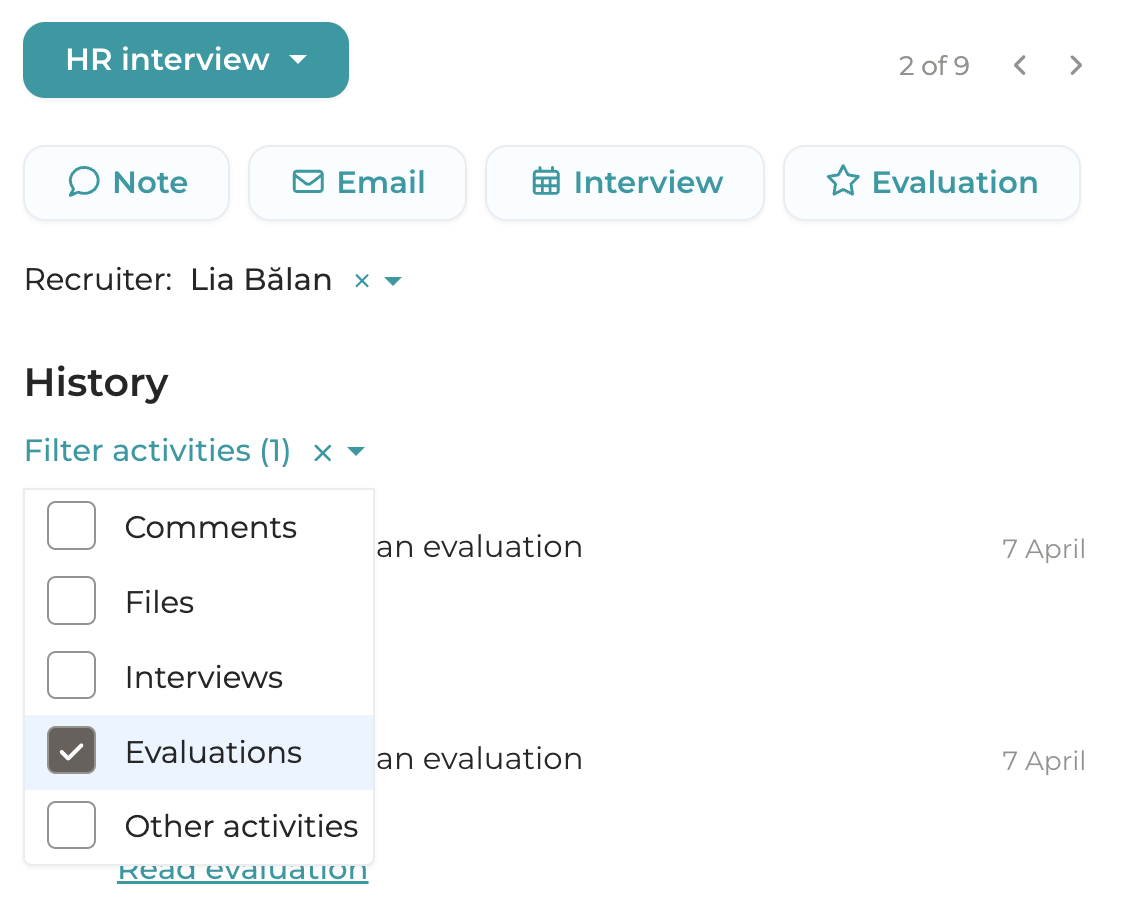
To see all evaluations submitted for a candidate, go to their profile. On the right side, in the History section, click Filter activities. From the drop-down menu, select the Evaluations option.
feedback structurat
CONTENTS